How to build your own AI operating system
Build a private dashboard for goals, time, money, business and personal relationships. See how they feed a daily view, a weekly review and a read-only AI coach. Download a starter prompt for Codex or Claude Code.
 Rui VasUpdated 26 November 2026
I built Rei’s Kingdom because the decisions I care about cross apps. Can I afford to take a month off? What work would I need to finish first? Who needs a reply before I go? My goals, bank ledger and contact list can each answer a piece of that. I wanted to see the pieces together.
The first version came together in three days. I described what I wanted to coding agents and reviewed what they made. The version in this guide grew from using it: I had to sort the contacts, clean up the money data and decide what was worth seeing every morning.
Quick start with Codex or Claude Code
Open the folder where you want to build your AI operating system in Codex or Claude Code. Download the starter prompt and paste its contents into a new session. You can also save the file in the project folder and ask the agent to read it and follow its instructions.
Download the AI operating system starter prompt (.md)
The prompt asks the agent to inspect your folder, ask up to three questions and help you choose one workflow to build first. It uses Cloudflare and Supabase as the starting stack and starts with sample data while you decide which accounts to connect.
What an AI operating system actually is
I think about mine in three parts: the operating loop tells me when to make decisions, the operating areas hold the records I need to make them, and the shared foundation keeps the records available and gives AI useful context.
The loop: Compass → Quests → Rhythm → Today
- Compass: Write down your mission, values and long-term intentions. I use the Three Most Important Questions (3MIQ) to think about what I want to experience, how I want to grow and what I want to contribute.
- Quests: Turn that direction into a few measurable outcomes for the quarter.
- Rhythm: Check in daily, review the week, and revisit your life areas each month and your quests each quarter.
- Today: See this week’s priorities, quest progress, habits, people to reach out to, and a quick view of cash runway. The next review uses what happened to set new priorities.
The areas: what the system helps me run
- Direction and reflection: Compass, 3MIQ, Life Wheel and Life in Weeks give me ways to set direction and see what has changed. I keep reviews and notes so I can revisit the decisions behind the numbers.
- Time, habits and health: Perfect Week shows where I intend to spend my time. Check-ins, habits and health logs show pieces of what actually happened.
- Money: Money Quest tracks balances, transactions, spending, runway and savings goals. It answers what I can afford and how much room I have to change plans.
- Work and business relationships: Business Quest is my CRM. It holds contacts, conversations, follow-ups, offers and deals. The Business overview puts that work alongside an income target.
- Personal relationships: Inner Circle gives family, friends and community their own place and a rhythm for keeping in touch.
The foundation: what makes the areas work together
Sign-in and navigation are shared. The app saves records across devices, keeps history for selected metrics, and assembles a compact summary for Today, reviews and AI. Start by entering a few records by hand or importing a file. My setup has bank imports and a way to log or ingest health data; contacts and call context can be brought in. Continuous Calendar, Gmail and Grain feeds are future integrations. A daily snapshot records what the app knows that day; it doesn’t refresh the underlying sources.
A week inside the system
Imagine this: My Compass says I want more freedom to travel. I set a quest to build three months of personal cash runway. Money Quest supplies the runway estimate from my liquid personal cash and monthly costs. Business Quest shows a proposal that needs a follow-up. I set that follow-up for Monday, block time for client work in Perfect Week, and choose a check-in with a friend from Inner Circle.
On Monday, Today shows the priorities I set in my weekly review, the follow-up and my runway. On Friday, I check whether the proposal moved, whether the cash arrived and whether I made time for the people I meant to call. If timing still looks tight, the next review is where I change the plan. The proposal is pipeline, the calendar is a plan, and the ledger is where I see money actually received.
The stack: what each part does
Here’s the stack behind my version. You can start with fewer tools: the first useful loop needs a private place to save a goal, a check-in and a review. Add the database and the model when you have a decision they can help with.
| Part | What I use | What it does |
|---|---|---|
| Builder | Codex and Claude Code | Write and change the code from plain-language requests. |
| Code and history | GitHub | Stores the project and its history. GitHub Actions runs checks and can deploy from main. |
| Front end and back end | Cloudflare Workers | The server that checks your session, serves the dashboard and handles its requests. |
| Everyday data | Cloudflare Durable Objects | Private storage for goals, habits, reviews, notes and plans. |
| Structured records | Supabase | The database for records such as transactions, contacts, conversations and deals. |
| Intelligence | Claude through the Anthropic API | The model the read-only Coach uses when configured. |
Start with demo data and check current hosting, database and model pricing before connecting real records. The hosting protects the dashboard; if you enable the Coach, it sends the question and selected context to the model provider.
Step 1: Write the vision before any code
Start with a decision you make often. What do you want to know each morning? What do you review on Fridays or Sundays? For money and people, what records already exist, which can you start entering by hand, and which should stay where they are?
Write docs/vision.md for my private AI operating system. Here’s what I want to decide each day and review each week: [your notes].

- Describe my loop: Compass (direction), Quests (quarterly outcomes), Rhythm (daily check-in and weekly review) and Today (the next few actions).
- Describe the areas that supply the facts: time and health, money, work and business relationships, personal relationships, and reflection. Add or remove areas to fit my needs.
- For each area, name one decision it supports, where its records live, what Today or the weekly review should show, and what should stay private.
- Pick one workflow for the first week. Sketch what I can enter manually before proposing imports or automation.

Write the vision first. Keep it to a page and ask about any decision you can't infer.
Checkpoint: Pick one decision and trace it from the original record to the next action. If you can explain it in a few sentences, give that version to your coding agent.
Step 2: Build one private page on your domain
Put a sign-in screen in front of one page: Today. That gives every later section a session check, shared navigation and a way to deploy. In my setup, the Worker checks the session before returning private pages, files or app data. Signed-out pages show sign-in; private browser APIs refuse the request. Agent and ingest endpoints have their own credentials.
Read docs/vision.md. Build Today as a mobile-friendly private page. Use a Cloudflare Worker for this version. Serve private pages, assets and API responses only after checking the session. Signed-out page requests should show sign-in; private APIs should return 401.

Use an established sign-in provider or, for a single-user app, a password stored only as a salted hash with a signing key held as a Worker secret. Set an expiring Secure, HttpOnly, SameSite session cookie and rate-limit login attempts.

Start with demo data, shared navigation and one test record. Show me how to run it locally and deploy it from a private GitHub repository. Tell me which settings and credentials I need to supply.
Checkpoint: Open Today on your phone and try the page, a private asset and an API in a signed-out window. Then sign in and save a test record.
Step 3: Give each record a home
Some of my first pages saved to the browser, so my phone and laptop disagreed. In the current design, a Cloudflare Durable Object stores everyday records. I use documents for things like Compass and Perfect Week, and collections for quests, habits, reviews and notes. Documents carry a revision number so a stale save gets flagged instead of overwriting a newer one.
The app also has other stores, including Supabase for the ledger and CRM. The Worker combines selected data from those stores into a state summary. Each record has a home; the summary lets the pages and AI work with the same picture.
Add a Cloudflare Durable Object for everyday records. Use /kingdom/api/ behind the browser session check.

- Use documents for Compass and Perfect Week. Use revision checks to reject stale saves.
- Use collections for quests, habits, daily habit ticks, reviews and notes. Allow only named document keys and collection kinds.
- Build a compact /kingdom/api/state summary in the Worker. Include which sources are missing and when key figures were last updated.
- Save dated snapshots of selected metrics. Leave absent values blank rather than treating them as zero.

Add browser helpers for saving and reading data, and verify that the same saved record is available on two devices.
Checkpoint: Save a change on your phone, see it on your laptop, and check that an unavailable source leaves a clear gap in the summary.
Step 4: Make the daily and weekly loop useful
Start with one mission, one quarterly quest and one habit. Add a short daily check-in for energy or mood. In the weekly review, look at what moved, write down a lesson, and choose up to three priorities. Put those priorities on Today, where you can tick them off. Once this works, add a setup checklist that marks each step complete as you enter real records.
Perfect Week is my reusable Monday-to-Sunday plan. Its blocks link to Life Wheel areas so I can see how I intend to divide the week. Work blocks can have an hourly rate to estimate what the plan could earn. Use the check-in and review to record what actually happened.
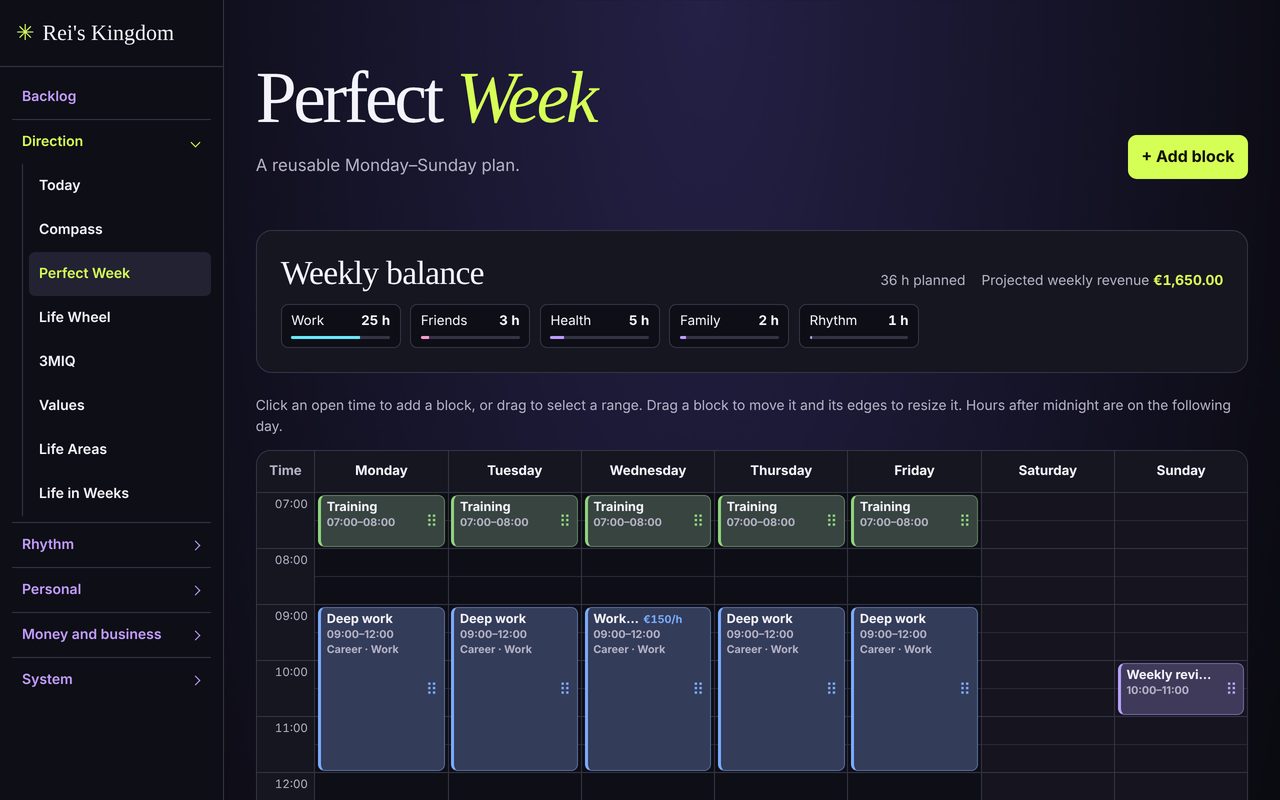
Read docs/vision.md. Add [section name]. It helps me decide [one decision]. I will record [a few fields]. Its records live in [source]. Send [one signal] to Today or the weekly review.

For a first Weekly Review, let me note what worked, what I’d change and three priorities for next week. Show those priorities on Today and let me mark them done.

Use the shared navigation and session check. Show a useful empty state. Verify the flow with demo data on a phone-sized screen and show me the result.
Step 5: Add money, work and relationships
Give each of these sections a decision to support. Start with a few records you can maintain, and let each section send one useful signal to Today or your review.
Money Quest: How much room do I have?
Start with an up-to-date cash balance, your essential monthly costs and a buffer goal. Import a small sample of transactions, label transfers between your own accounts so they don’t count as income or spending, and check the totals against the source. In Money Quest I can review spending, subscriptions, budgets, savings goals, investments and net worth. The first number I want on Today is runway: liquid personal cash divided by monthly costs. Company cash and property equity stay separate from that estimate. Show when balances were last checked and when the cost estimate is rough.
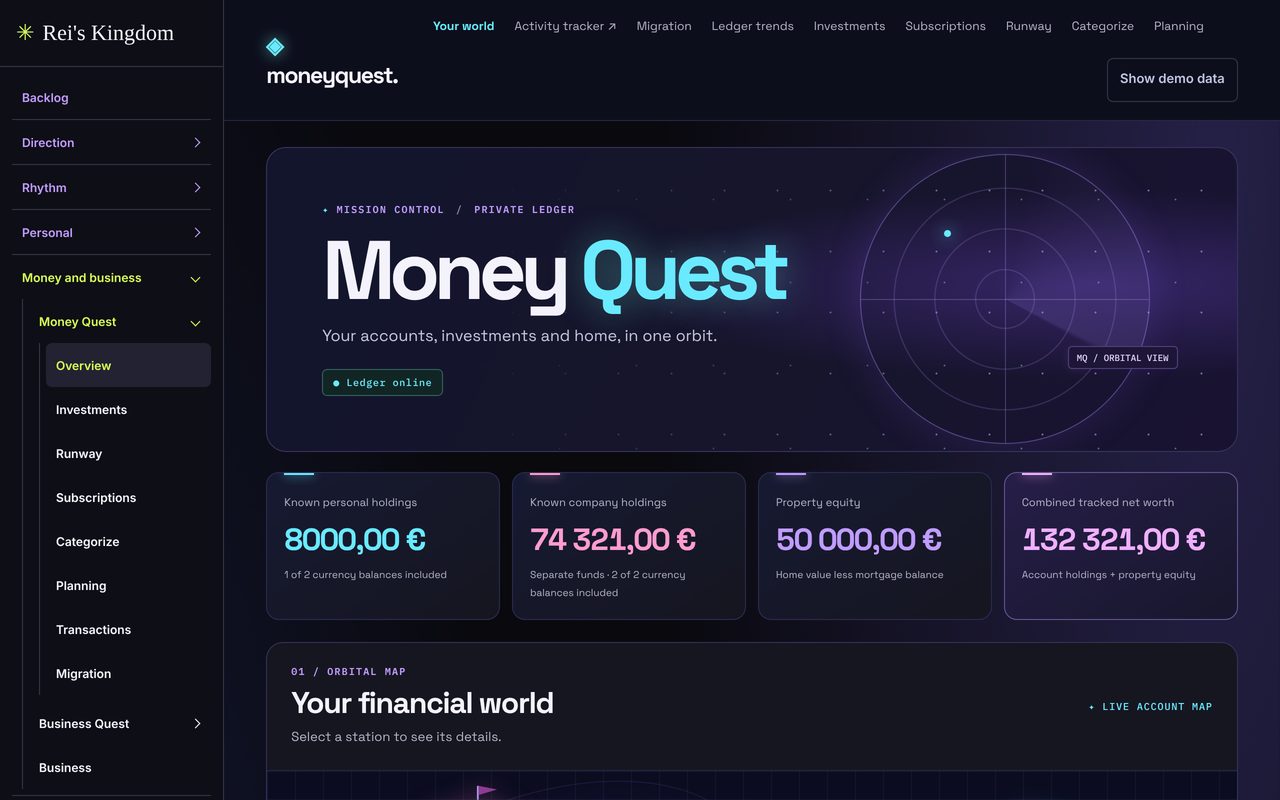
Start with a dated cash balance, essential monthly costs and a buffer goal. Show personal cash runway on Today. Label the currency, the cost basis and when the data was updated. Show unknown runway when inputs are missing.

Let me preview a small CSV import before saving. Flag duplicate rows and separate transfers between my own accounts from income and spending. Add a monthly review that compares actual cash flow with the plan. Verify the totals using synthetic transactions.
Business Quest: Who needs a next step?
Start with five active contacts. Give each person a company or role, the date of your last conversation, a next action and a follow-up date. Business Quest has an inbox to triage new contacts, a history of conversations, a product ladder for offers and a deal pipeline. A conversation can lead to a follow-up on Today; a deal can help you think about future income alongside your target. Record actual receipts in Money Quest when they arrive.
Create a private CRM with an inbox and records for contact, company, last conversation, next action and follow-up date. Start with five fictional contacts. Show only due follow-ups and their reasons on Today.

Add a basic pipeline with stage, expected value and expected close date. Keep pipeline, signed work and cash received distinct. Let me log a conversation manually. If AI drafts a message, show it for review and leave sending to me.
Inner Circle: Who do I want to make time for?
I keep family, friends and community in a personal view, with their own reasons to reach out. Start with five people and note when you last spoke, how often you want to check in and, if helpful, a birthday. Today can surface a personal nudge and a client follow-up together, with a reason for each. I decide what to send.
Make a personal relationships view with separate circles for family, friends and community. Track when I last reached out, how often I want to be in touch and an optional birthday.

Show a short, clearly labelled list on Today explaining why each nudge appeared. Let me record contact myself. Test with fictional people and make sure personal relationships don’t show up in the deal pipeline.
Where I put the records
My transaction ledger and CRM records live in Supabase, a hosted Postgres database. The browser goes through the Worker, which checks the session before making requests to the relevant Supabase Edge Function. Database credentials stay on the server. In my setup, the browser computes a compact money summary from the ledger it already loaded. The Worker and Coach can use that saved summary without processing the full ledger. You can start with a small table in the shared store and move to a database when imports, relationships between records or data volume call for one.
When you make that move, ask your coding agent for a versioned database migration, owner-scoped access and a preview of what it will import. Run the import twice with test data and check that it doesn’t create duplicates. Keep the original export so you can reconcile what landed.
Checkpoint: Reconcile a small import, see one due follow-up and one personal nudge on Today, and check that editing a source record is reflected there. Try the same flows with fictional data before importing anything private.
Step 6: Give AI one door into your data
In my setup, the Coach sends Claude my question, a snapshot of selected dashboard data and any matching notes or reviews it finds. It needs an API key and makes no edits. It can point out that the runway number is stale or help draft a follow-up I can review. It can only compare what I intended with what I did if I recorded both.
Try asking: “What could get in the way of my runway quest this month? Use the last money summary and my latest review. Tell me what’s stale or missing, then suggest one action I could take this week.” Check the answer against the source pages. Give any external agent its own credential and share only the fields its job needs.
Add a Coach page. Put the model API key in a server secret. Explain what context is sent and let me test with demo data.

For each question, send the relevant part of the dashboard summary. Exclude raw bank records, contact details and full transcripts by default. Ask the model to cite the dashboard section and date for each figure, say when data is stale or missing and suggest one next step. Give it no write or message-sending tools.

If an outside agent needs context, add a read-only endpoint using its own revocable credential and a narrow view of the data.
Checkpoint: Ask about a record that exists, then one you deliberately leave blank. Check that the Coach names its source or says it doesn’t know. Test with demo data first.
Step 7: Let AI agents improve the system
My Backlog has four columns: Ideas, To Do, In Progress and Done. A card has an owner, a priority, dependencies and a clear “done when” line. Agent proposals start in Ideas. I decide which cards move to To Do. The server checks ownership and dependencies before an agent can claim one. A card can ask me for a decision when the agent gets stuck.
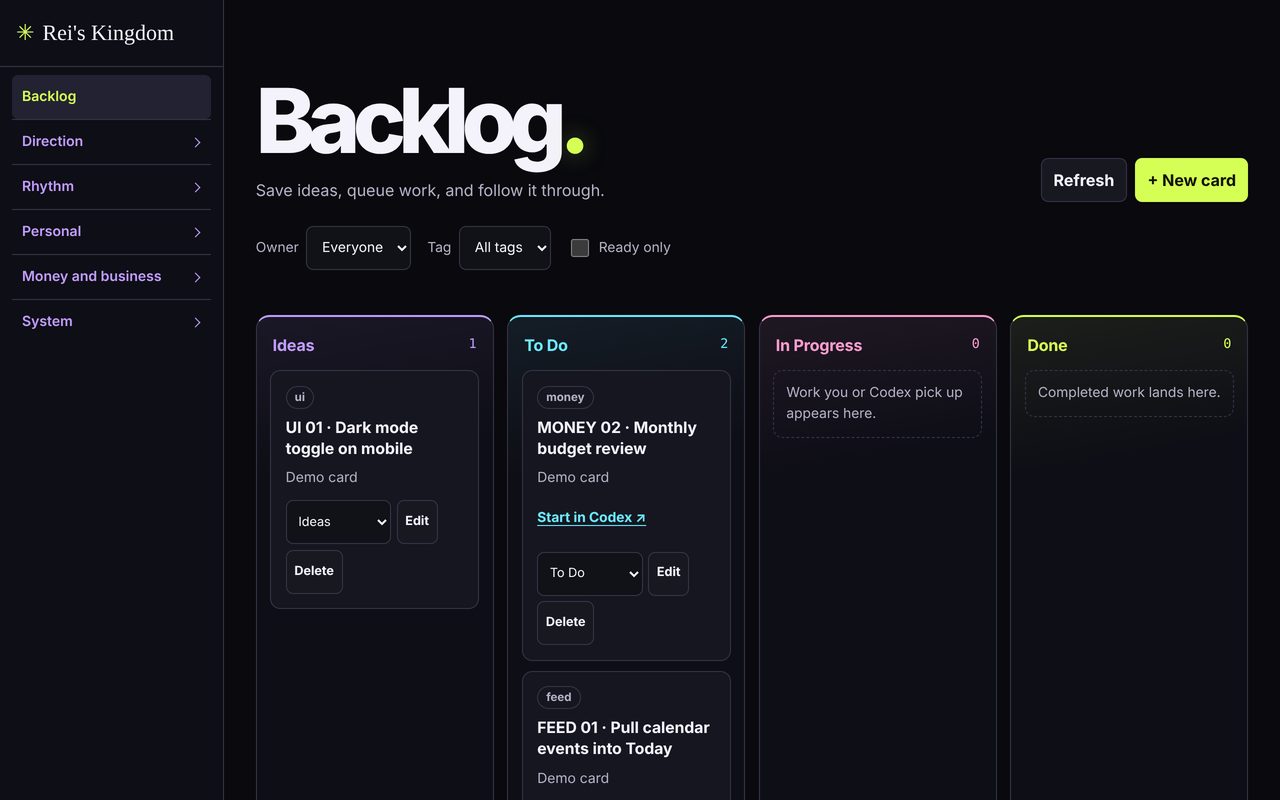
There’s a prompt for a weekly improvement review. You can run it yourself or configure it as a scheduled routine. It looks at usage, reviews and existing cards, and suggests up to five small changes. Start after you’ve used the system for a few weeks, so it has something to learn from.
Build Ideas, To Do, In Progress and Done. Each card needs an owner, priority, dependencies and a “done when” line.

Use separate credentials for reading the queue and for proposing or claiming work. Agent proposals always start in Ideas. A person moves them to To Do. Reject attempts to claim owner-only work, blocked work and work another agent already claimed.

Write a weekly review prompt that reads usage, open cards and the latest review, then proposes up to five small improvements. Run it manually first. Have it propose changes in Ideas without starting work.
Step 8: Add tests and automatic deploys
The private dashboard’s GitHub workflow checks pull requests and pushes to main. It runs unit tests, checks generated files and uses a browser at phone size against a local Worker and a fake database. Deploys from main require a configured Cloudflare credential and passing checks. A check after deployment confirms signed-out API requests are refused.
Add unit checks and a phone-size browser test with synthetic data. Cover sign-in, a saved review appearing on Today, a due follow-up, and a money import whose totals can be reconciled. Verify signed-out access fails for private pages, files and APIs.

Run the checks in GitHub Actions. Deploy from main only after they pass and the deployment credential is configured. Check live access after deployment and document rollback.

Write AGENTS.md with the rules for adding a section. Include where to save records, what can enter the AI summary and how to verify the flow.
Rules that kept it working
- Make it worth opening on your phone. Start with the decisions you want to make there.
- Keep dates with the data. A balance or a follow-up without an “as of” date is easy to misread.
- Use AI to read and propose. Review drafts, edits and backlog changes before they affect real records or other people.
- Keep the data you need. Start with summaries and metadata where possible. Make imports and connections easy to undo, and check what you can export.
- Populate before expanding. The CRM looks finished long before it has useful next steps. The same goes for a budget full of uncategorized transactions.
Start this week
- Put one measurable quest and one habit on a private Today page.
- Pick one area to connect first: add a dated cash buffer or a contact with a follow-up due. Record just enough to make the next decision.
- Use Today for a week. In your first review, ask what you did differently because the system was there. Use the answer to decide what to build next.
New to building with AI? Start with how to build a website with Codex and Cloudflare for the domain, GitHub and deploy steps. Then create your AI stack to pick the tools around it.